Console Won’t Turn On or Show a Picture? First Steps for PS5, Xbox and Switch Owners Near Snodland
Practical, safe troubleshooting steps for common non‑overheating console problems (no power, no HDMI signal, frozen updates), plus clear guidance on when to bring your PS5, Xbox or Switch to Smart Tech in Snodland for diagnostics and repair.
Start with a calm, simple checklist
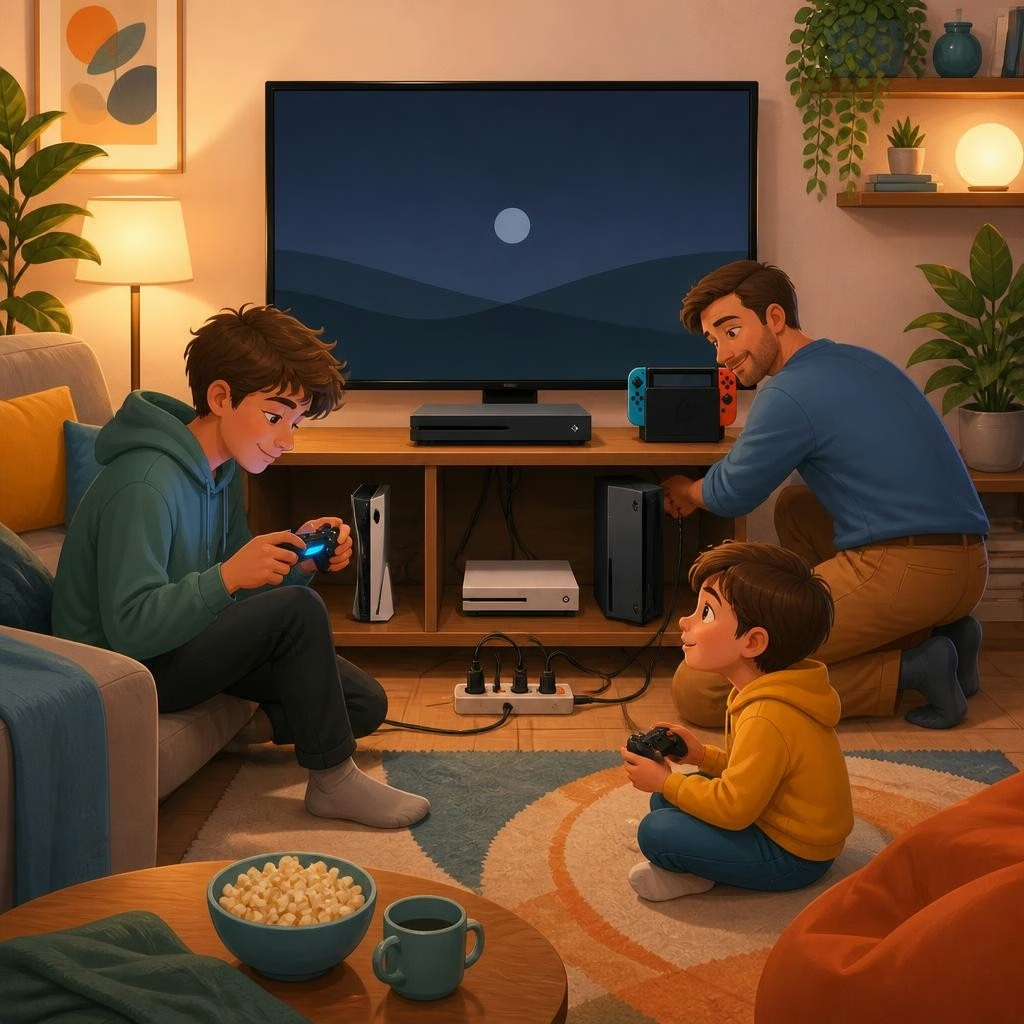
When a console suddenly won’t power on or show an image, quick basic checks often solve the problem. First, verify the TV or monitor is set to the correct input and that its volume or display isn’t muted/turned down. Look for obvious lights on the console, the power cable, HDMI connection, and the controller. Try restarting the TV and the console (power off, wait 30 seconds, then power on). These simple steps take a few minutes and rule out common external issues before you move to deeper troubleshooting.
If there’s no power at all
Check the power socket with another device to confirm it’s live, then inspect the console power lead and any external power brick (relevant for some older models and accessories). Make sure plugs are fully seated and try a different outlet. Avoid opening the console yourself — internal components can hold charge or be damaged by improper handling. If the console still shows no sign of life after these checks, it’s time for professional diagnostics to identify internal power failures or damaged components.
If the console powers up but there’s no picture
Power lights but no HDMI signal is often a cable, input or TV compatibility issue. Try: swapping the HDMI cable for a known‑good one, switching the console to a different HDMI port, testing the console with another TV/monitor, and testing the TV with another source (DVD player, laptop). For Nintendo Switch owners, also test handheld mode to verify the screen works outside the dock. If cables and ports test fine but the screen remains blank, HDMI port damage or internal video faults may be the cause — bring it in for a diagnostic.
Troubles with frozen updates or a stuck boot sequence
If your console appears to be frozen during an update or won’t finish booting, try a controlled restart: power off fully, wait 30–60 seconds, then power on again. Disconnect any USB drives, external storage or non‑essential peripherals before restarting. Avoid repeatedly interrupting an update, as that can corrupt system software. If the console repeatedly fails to boot, keeps returning to update loops, or displays error codes you can’t resolve, a technician can run safe‑mode repairs or reinstall firmware safely — tasks best handled with professional tools and backups.
When a home check isn’t enough — warning signs to bring it in
Bring your console to Smart Tech for internal diagnostics if you notice smoke or a burning smell, clicking/grinding noises, obvious liquid ingress, repeated power cycling, or persistent display failures after the basic checks above. Also come in when the console won’t update or boot despite several safe restarts, or when HDMI pins look bent or damaged. These are signs of hardware faults, port damage, or internal board problems that require specialist tools and experience to repair safely.
What Smart Tech will do for your console
Smart Tech in Snodland offers professional diagnostics and console repairs (including PS5, Xbox and Switch) performed by experienced technicians. When you bring a console to 112 Poynder Dr, the team will run a structured inspection, test power and video subsystems, and advise on repair options and costs before any work begins. Local customers frequently report fast turnaround and clear, honest advice — helpful when you need devices back quickly for family use. If a repair is feasible, Smart Tech can carry out the internal work and test the console thoroughly before returning it to you.
Practical tips before you visit and final advice
Before you bring a console in, back up game saves and accounts if possible, remove memory cards and external drives, and bring the power cable and any controllers — that helps speed diagnosis. Do not open the console yourself or use improvised fixes for internal faults. For quick help, many local customers contact Smart Tech directly (some use messaging for fast responses) to describe the problem and arrange drop‑off. If basic checks don’t restore power or picture, a professional diagnostic at Smart Tech is the safer, more reliable next step.
Customer review


Article by
Smart Tech Repair
Welcome to Smart Tech, your one-stop solution for smart device repairs. We specialise in screen replacements, battery replacements, charging port repairs, water damage repairs, and more for a wide range of devices. Whether you need repairs for your phone, tablet, laptop, desktop, Mac, or any other smart device, we've got you covered. Our skilled technicians are experienced in handling various device models and brands, ensuring top-notch service and reliable solutions. Conveniently located in Holborough, Snodland, we are dedicated to providing fast and efficient repair services to our valued customers. We understand the importance of your smart devices in your daily life, and our goal is to get them back in perfect working condition.