MacBook or Laptop Not Charging in Holborough? How to Tell If It’s the Charger, Port or Battery
Practical, safe checks you can try when a MacBook or laptop stops charging, clear signs that point to a faulty charger, port or battery, and guidance on when to bring your device to Smart Tech in Holborough for a professional diagnostic.

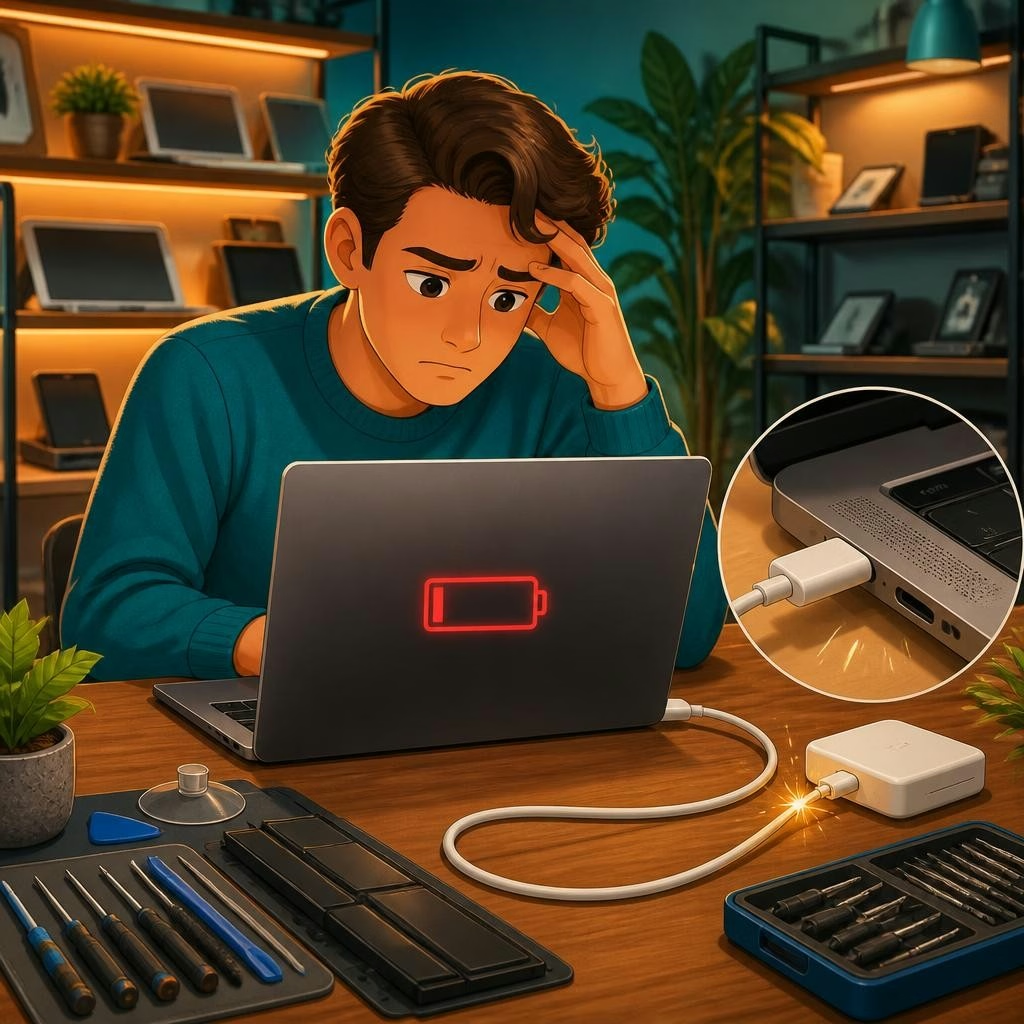
What this article covers — and a safety note
If your MacBook or laptop won’t charge, the cause is usually one of three things: the external charger (adapter or cable), the charging port/connector, or the internal battery. This article walks through safe, practical checks you can do at home to narrow the problem down, signs to look for that point to each issue, and when a professional diagnostic at Smart Tech in Holborough is the best next step. Always disconnect power and work on a dry surface; if you see swelling, burning smells, sparks, or liquid exposure, stop and seek professional help rather than attempting repairs yourself.
Quick, safe checks you can try first
Start with simple, non-invasive tests: try a different wall socket and remove any surge protector or extension lead; swap the cable and charger with another known-working unit if possible; inspect the cable and adapter for splits, fraying, or bent pins; and gently clean the laptop’s charging port with a dry, anti-static brush to remove lint. For laptops with magnetic or USB-C connectors, take note of how the connector sits — loose fit or intermittent contact are useful clues. If the device still shows no sign of charging, these checks will help you decide whether to continue troubleshooting or visit a technician.
How to tell if the charger or cable is at fault
Signs a charger or cable is failing include visible damage to the cable or adapter, no indicator light (if the adapter has one), or the laptop charging when using a different charger. If the laptop runs from battery but won’t accept charge, that often points to the external power supply. For USB-C-equipped laptops, a faulty cable can still transmit data while failing to negotiate power correctly, so test with a high-quality cable and a charger rated for your laptop. Borrowing a compatible charger briefly is an easy diagnostic step before paying for repairs.
Spotting a worn or failing battery
Batteries wear out over time. Typical signs include rapidly reduced battery runtime, sudden shutdowns when the battery level still reads above zero, or the machine reporting a degraded battery condition in system settings. On MacBooks you can check the battery condition in macOS battery settings and see cycle information; many laptops have a battery health indicator in the BIOS or OS utilities. A swollen battery is a serious safety concern — it will deform the case and should not be used. If you suspect battery failure, a diagnostic and battery replacement are the safest options.
When the charging port or internal connector is the problem
If charging only works when you hold the plug at a particular angle, or the connector wiggles, the charging port or internal socket may be damaged or have bent pins. Visible debris or corrosion in the port, burning or hot smells around the connector, or discoloured pins are further warnings. These faults need careful disassembly and repair to avoid further damage; Smart Tech lists charge port repair and diagnostic services and can inspect the internal connectors safely rather than you attempting to push or pry the port yourself.
Software issues and simple resets to try
Sometimes a software issue or power-management firmware can prevent charging. A safe first step is to restart the laptop and check for OS updates. On many Macs and some laptops an SMC or power-management reset can clear faults that stop charging — back up your data and look up the manufacturer’s official guidance before attempting those resets. If resets don’t help, a diagnostic scan can determine whether the problem is hardware or software related.
When to bring your laptop to Smart Tech in Holborough
If your checks point to a faulty charger and you don’t have a replacement, or if the problem seems to be the port, battery or internal hardware, bring your device to Smart Tech at 112 Poynder Dr, Snodland (covering Holborough and nearby areas). We offer diagnostic scans, charge port repair, battery replacement and laptop diagnostics. Many customers report fast, clear diagnostics and honest advice that often avoids unnecessary replacement. One customer specifically noted that Smart Tech helped diagnose a MacBook issue quickly — diagnostics can save you the cost of buying a new machine if the fault is repairable. We’ll explain repair options, and our no-fix-no-fee approach means you won’t be charged for unsuccessful repairs where applicable.
Customer review


Article by
Smart Tech Repair
Welcome to Smart Tech, your one-stop solution for smart device repairs. We specialise in screen replacements, battery replacements, charging port repairs, water damage repairs, and more for a wide range of devices. Whether you need repairs for your phone, tablet, laptop, desktop, Mac, or any other smart device, we've got you covered. Our skilled technicians are experienced in handling various device models and brands, ensuring top-notch service and reliable solutions. Conveniently located in Holborough, Snodland, we are dedicated to providing fast and efficient repair services to our valued customers. We understand the importance of your smart devices in your daily life, and our goal is to get them back in perfect working condition.